
Finding What You Need Fast: Mastering Laserfiche Repository Search
Searching for “John” in MCCi’s Laserfiche repository returns 7,649 results after a three-minute wait. But narrow that same search to just annotations? Three seconds and ten results. That’s the difference between frustration and efficiency.
If you’re managing documents for a municipality, county agency, or school district, you know time is your most valuable resource. Citizens expect quick responses. Council meetings don’t wait. Budget deadlines are non-negotiable. Your Laserfiche repository holds critical information, but only if you can find it quickly.
Let’s explore four practical strategies to help you locate documents faster and work more efficiently.

Get Documents in Seconds, Not Minutes
The Challenge: Broad Laserfiche searches return thousands of results, wasting valuable time and delaying critical workflows.
The Solution: Four strategies cut search time by 90%: organize with metadata, narrow searches with filters, save common queries, and use advanced syntax.
The Bottom Line: Proper techniques plus expert Laserfiche training and support turn three-minute searches into three-second results.
1. Start with a Well-Organized Foundation
Think of your repository like a city’s filing system. Without proper organization, even the best search tools can’t help you. Strong organization begins before you ever type a search query.
Tag documents with descriptive metadata. Include relevant details like keywords, authors, dates, and document types. When your building permits are tagged with contractor names, project addresses, and permit numbers, finding specific documents becomes straightforward rather than a guessing game.
Establish consistent naming conventions. Your finance team should use the same format as your public works department. This consistency makes files identifiable at a glance and dramatically improves search accuracy.
2. Precision Beats Broad Searches Every Time
Enable OCR for scanned documents. Laserfiche AI can automatically process scanned documents through Optical Character Recognition, making older paper records fully searchable. Historical meeting minutes from 1995 become just as accessible as today’s digital files.
Structure folders logically. Organize documents into well-defined folders and subfolders that mirror your department’s workflow. When your folder structure makes sense, you’ll know where to start your search.
Generic searches return overwhelming results. Specific searches deliver what you need. Here’s how to narrow your focus:
Choose specific keywords over vague terms. Instead of searching “budget,” try “FY2024 budget amendment.” The more specific your terms, the fewer irrelevant results you’ll wade through.
Search exact phrases using quotation marks. Looking for “quarterly sales report” with quotes returns only documents containing that precise phrase, not every document mentioning quarters, sales, or reports separately.
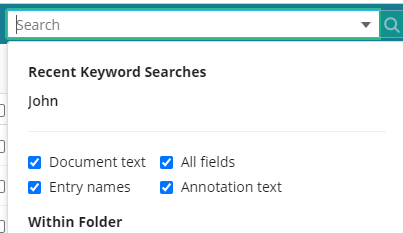
Target where keywords appear. Laserfiche lets you specify whether to search document text, entry names, or annotations. If you’re looking for documents that colleagues have marked up, searching annotations exclusively saves significant time.
Apply metadata filters strategically. Refine results by document type, author, or department. Looking for contracts from your legal team? Filter by department and document type simultaneously.
Specify document location when possible. A well-organized repository lets you target specific folders, significantly reducing search time.
3. Save Your Most Common Searches
Government work involves recurring tasks. Leverage saved searches to eliminate repetitive work:
- Project-based searches: Create saved searches for ongoing initiatives with predefined metadata like project name and date range
- Department-specific queries: Set up searches for HR documents, finance records, or public works files
- Time-sensitive searches: Save “Last Quarter Meeting Minutes” or “Current Year Invoices” for one-click access
- Document type collections: Quick access to building permits, contracts, or council resolutions
- Author or creator tracking: Monitor documents from specific team members or departments
4. Take Control with Advanced Search: Precision Results in Seconds
Standard search options cover most needs, but advanced techniques unlock Laserfiche’s full potential. Wildcards help find word variations. Proximity searches locate terms appearing near each other. Boolean operators like AND, OR, and NOT combine search terms for precise results.
For example, “budget AND 2024 NOT draft” returns approved budgets while excluding preliminary versions. These techniques turn complex searches into simple queries.
Why Laserfiche Training and Support Matter
Even the most powerful search tools require knowledge and practice. That’s where working with experienced Laserfiche partners makes a difference. Quality Laserfiche training ensures your team knows these techniques. Responsive Laserfiche customer support helps when you encounter unique challenges. The right Laserfiche solution provider becomes an extension of your team, helping you maximize your investment.
At MCCi, we serve over 2,100 government clients nationwide. Our comprehensive Laserfiche support includes specialized training through MCCi LMS and technical experts who understand public sector workflows. We don’t just answer questions. We help you work smarter.
Finding what you need shouldn’t take longer than the work itself. With proper organization, focused search strategies, and knowledgeable support, your Laserfiche repository becomes a tool that accelerates your work rather than slowing it down.
Common Questions:
Yes, Laserfiche allows you to search using metadata. In the advanced search options, you can specify the metadata fields (such as author, date, or tags) that you want to search by.
A wildcard search allows you to search for variations of a word. In Laserfiche, you can use the asterisk (*) as a wildcard character. For example, entering "plan*" will return documents that include the words "plan," "plans," "planner," etc.
Laserfiche supports Boolean operators like AND, OR, and NOT to combine search terms and refine searches. For example, searching for "budget AND 2021" will yield documents that contain both terms.
Yes. To search for an exact phrase, put quotation marks around the phrase. For instance, if you search "annual report", Laserfiche will look for documents containing that precise phrase.
Try starting with a broad search and then use filters to narrow it down. Alternatively, searching for associated metadata or recalling a document's template or location within the repository structure can also lead to successful discovery.
Ensure there are no spelling mistakes in your search terms and remove any unnecessary filters. If you're still not finding your document, it might be stored in a location you don't have access to, or it simply may not exist in the repository.